Connect Aloom to your AI
What you learn while talking with an AI can come to your Aloom inbox. Nothing joins your graph until you keep it there.
Pick the AI you use.
In the Claude desktop app. claude.ai on the web has the same menus. On the Free plan you can add one custom connector; on Team and Enterprise, only an owner can add one.
Open Connectors
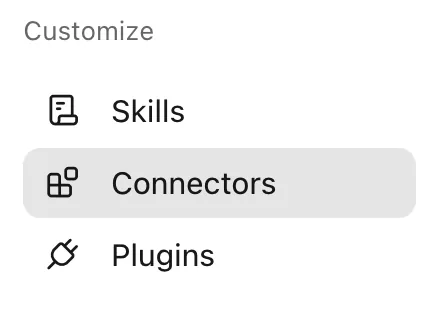
In Claude, choose Connectors under Customize.
Add a custom connector
Press + Add at the top right, then choose Add custom connector.

Enter the name and address
Name it Aloom, paste this address, and press Continue.
https://aloom.ink/mcp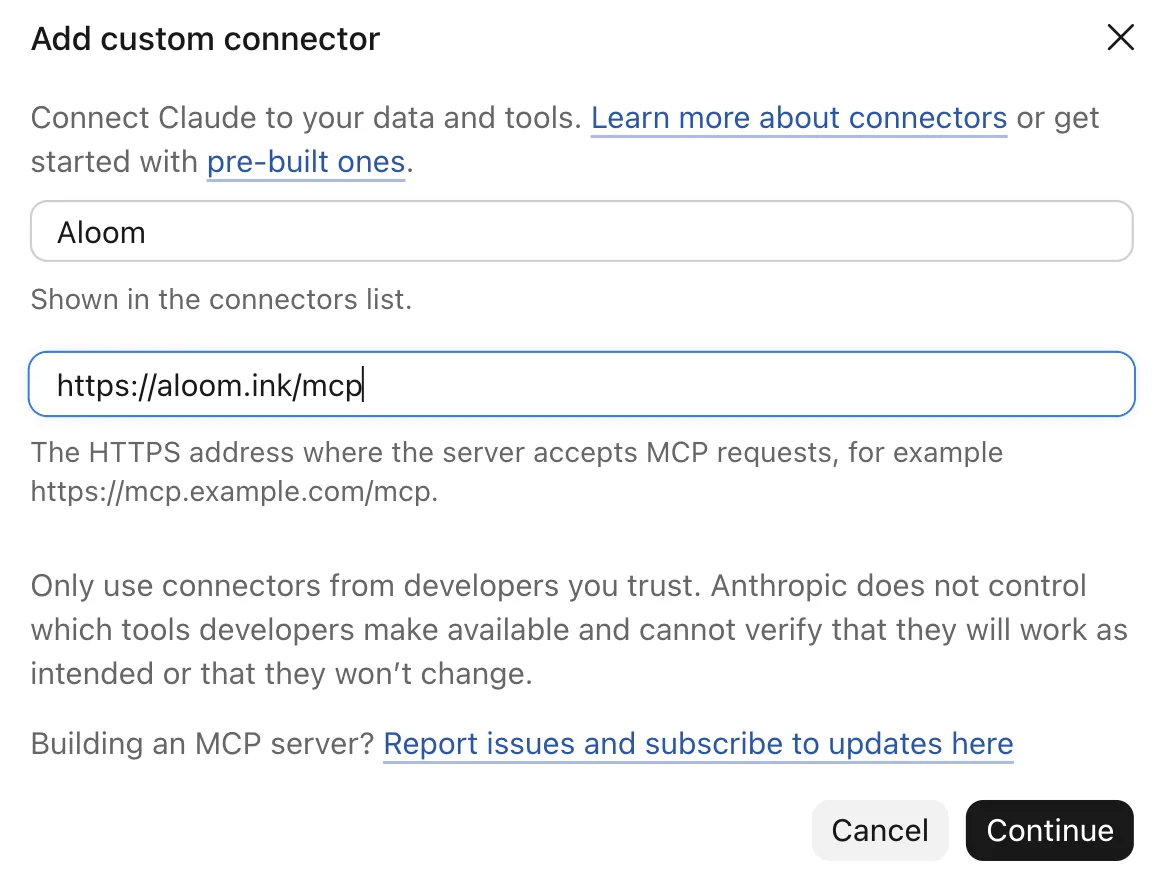
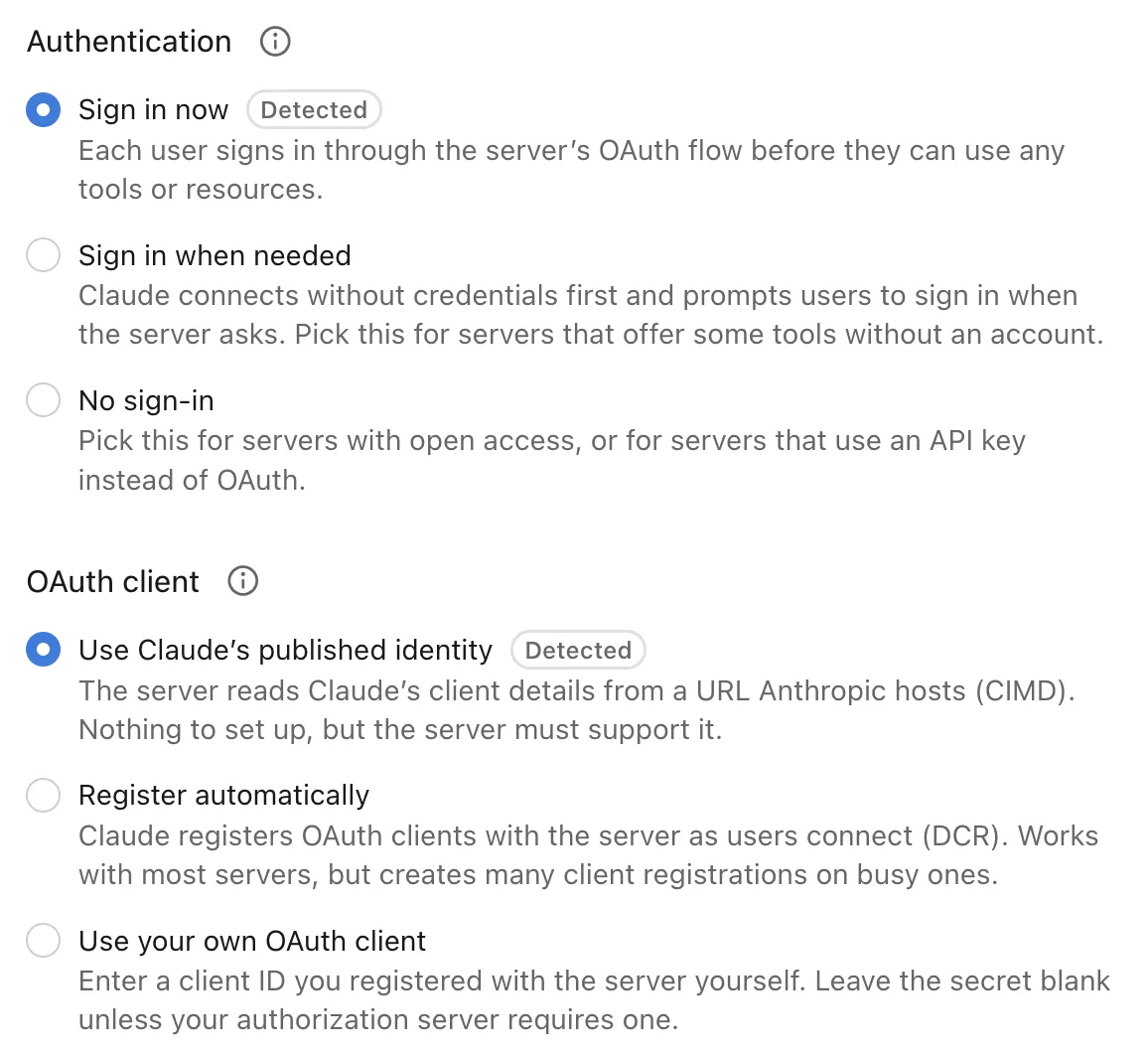
Leave the sign-in as it is
Authentication is already Sign in now, and OAuth client is Use Claude’s published identity. Both are marked Detected, so there is nothing to change.
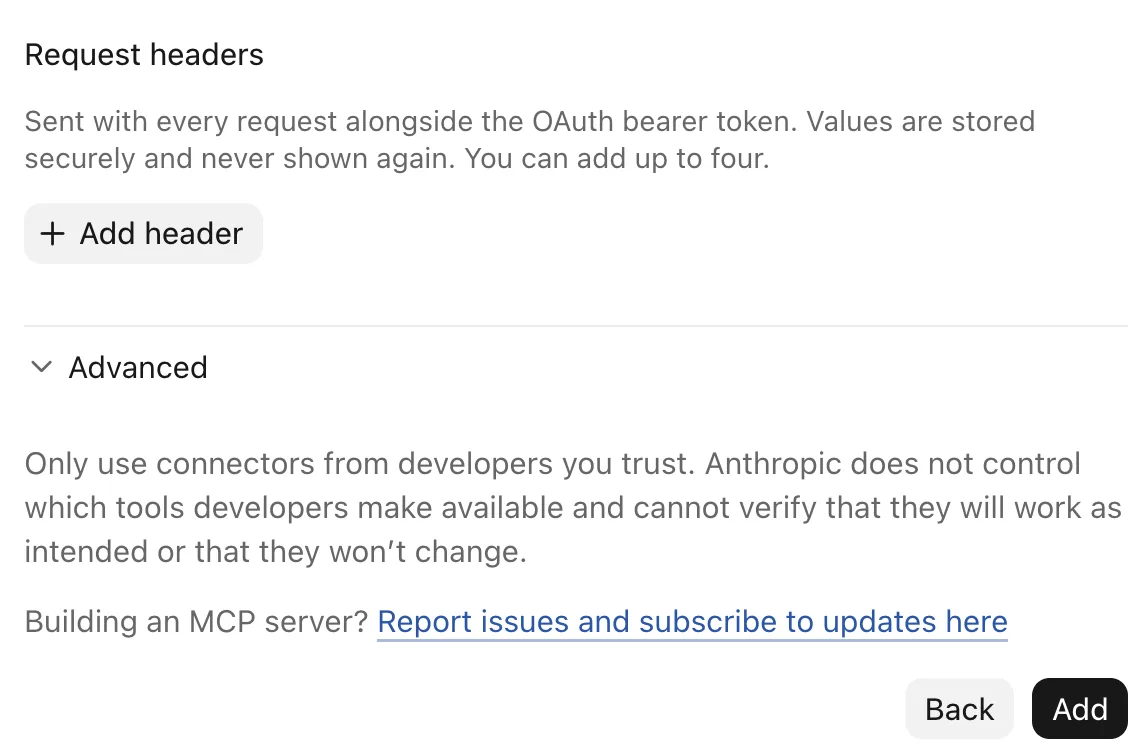
Leave the headers empty
Add nothing under Request headers: Aloom signs you in, so there is no key to give. Press Add.
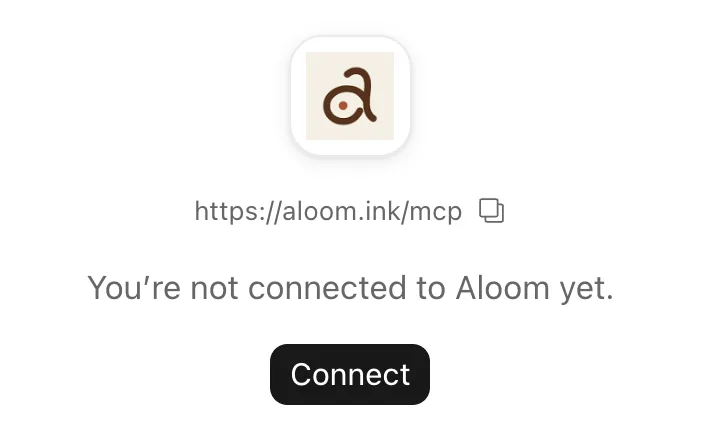
Press Connect
Aloom is on your list now. Press Connect.
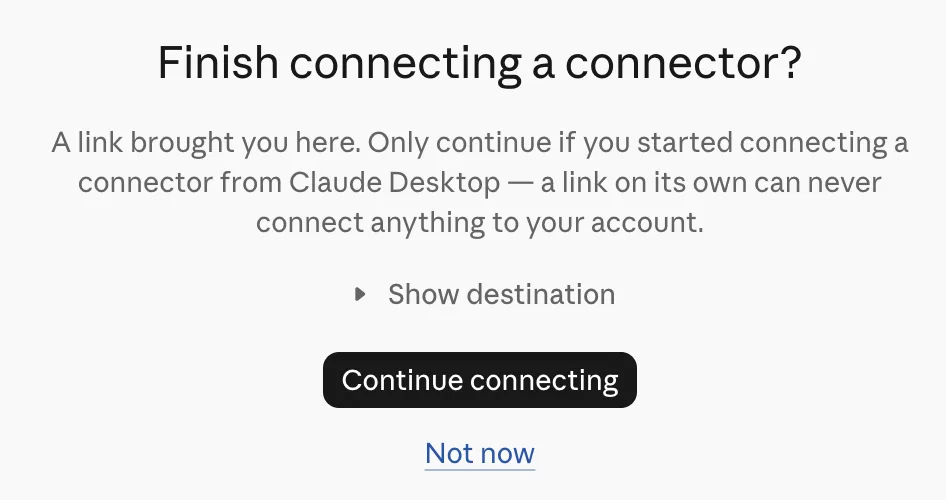
Press Continue connecting
Claude checks once more that you started this yourself.
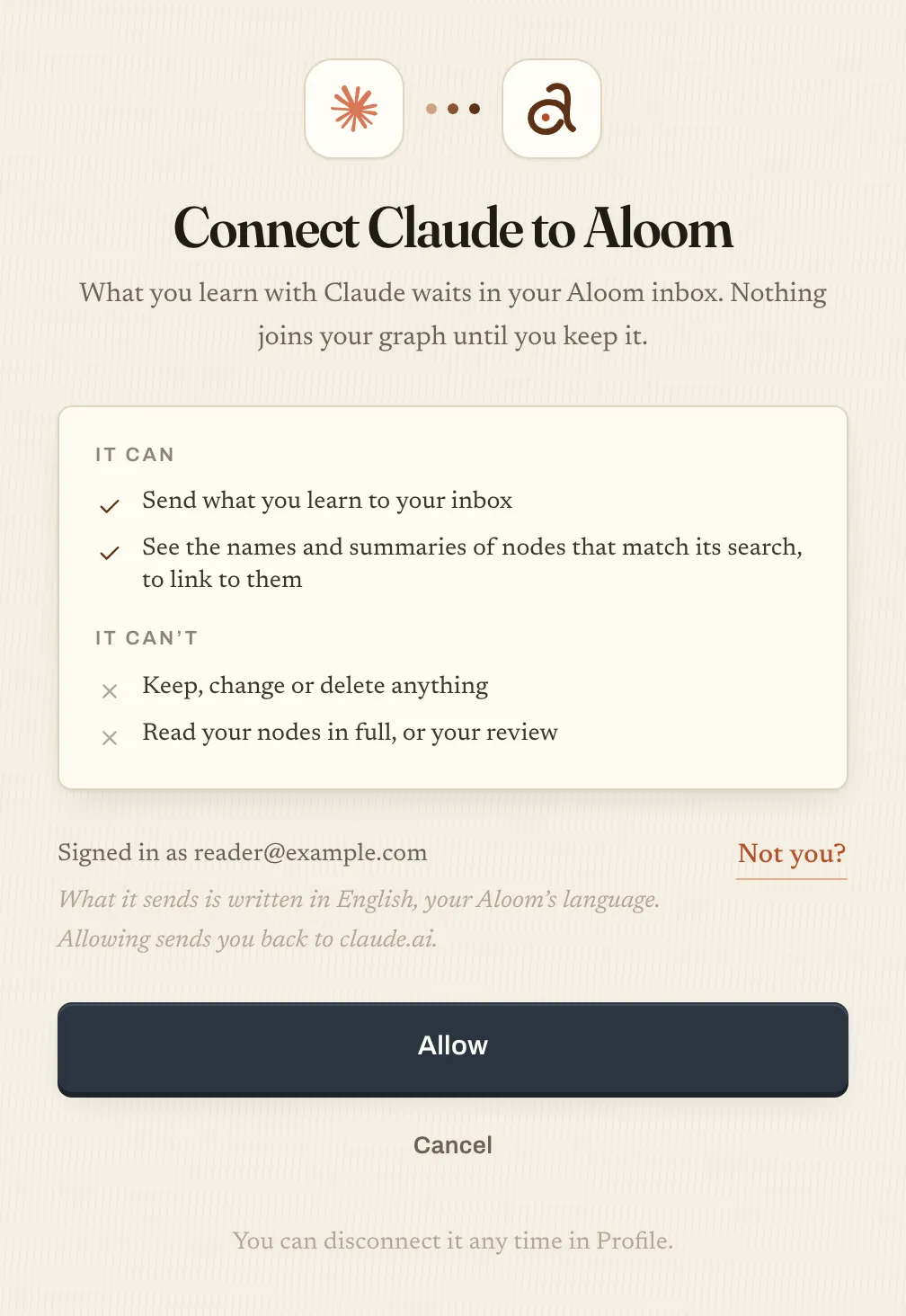
Check your Aloom account, then Allow
aloom.ink opens. Check the account it is signed in as: the one you use for Aloom. It does not have to be your Claude account. If it is right, press Allow.
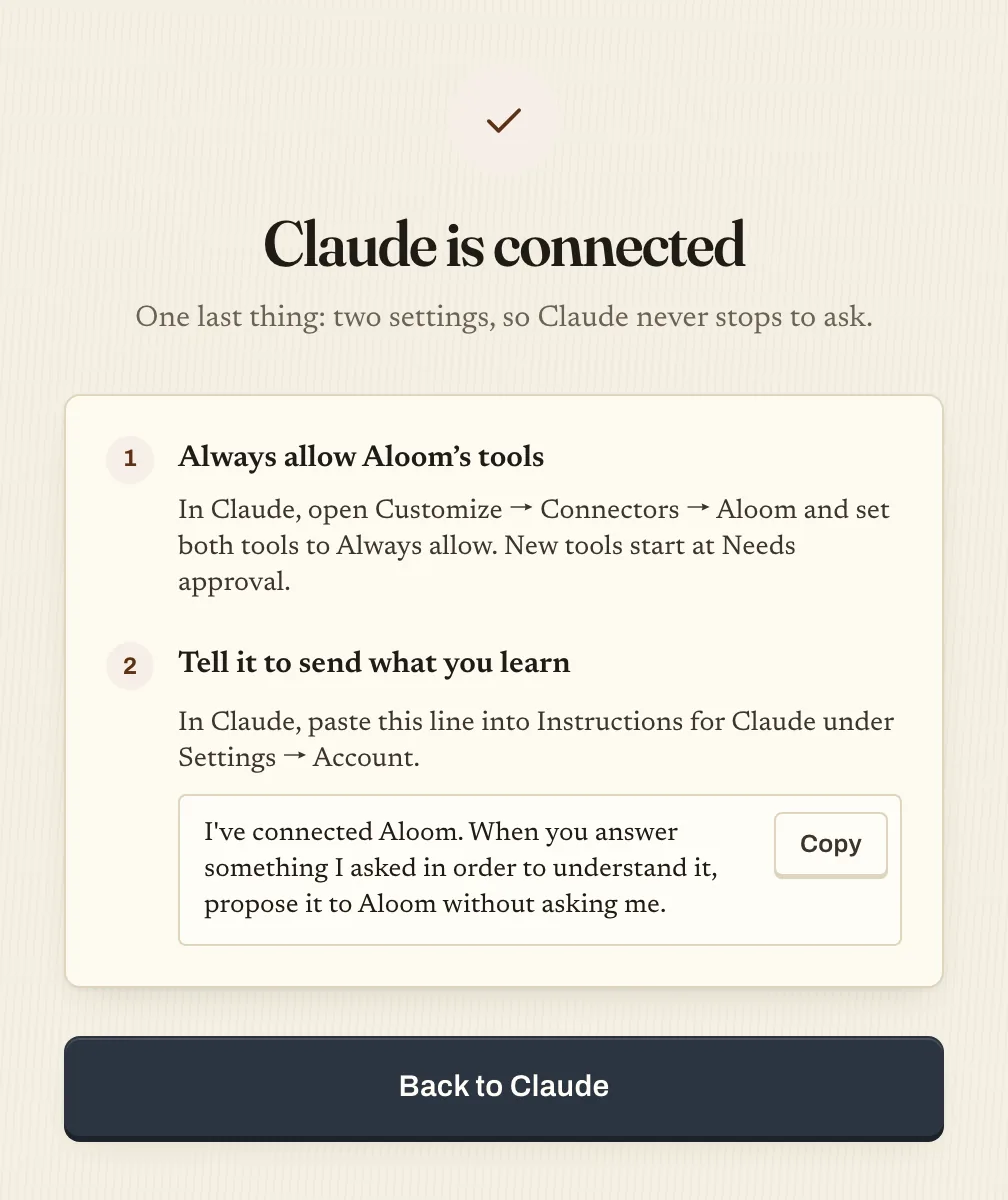
Go back to Claude
When it says Claude is connected, press Back to Claude.
Open Aloom in Connectors
Aloom is under Yours in Connectors. Open it.

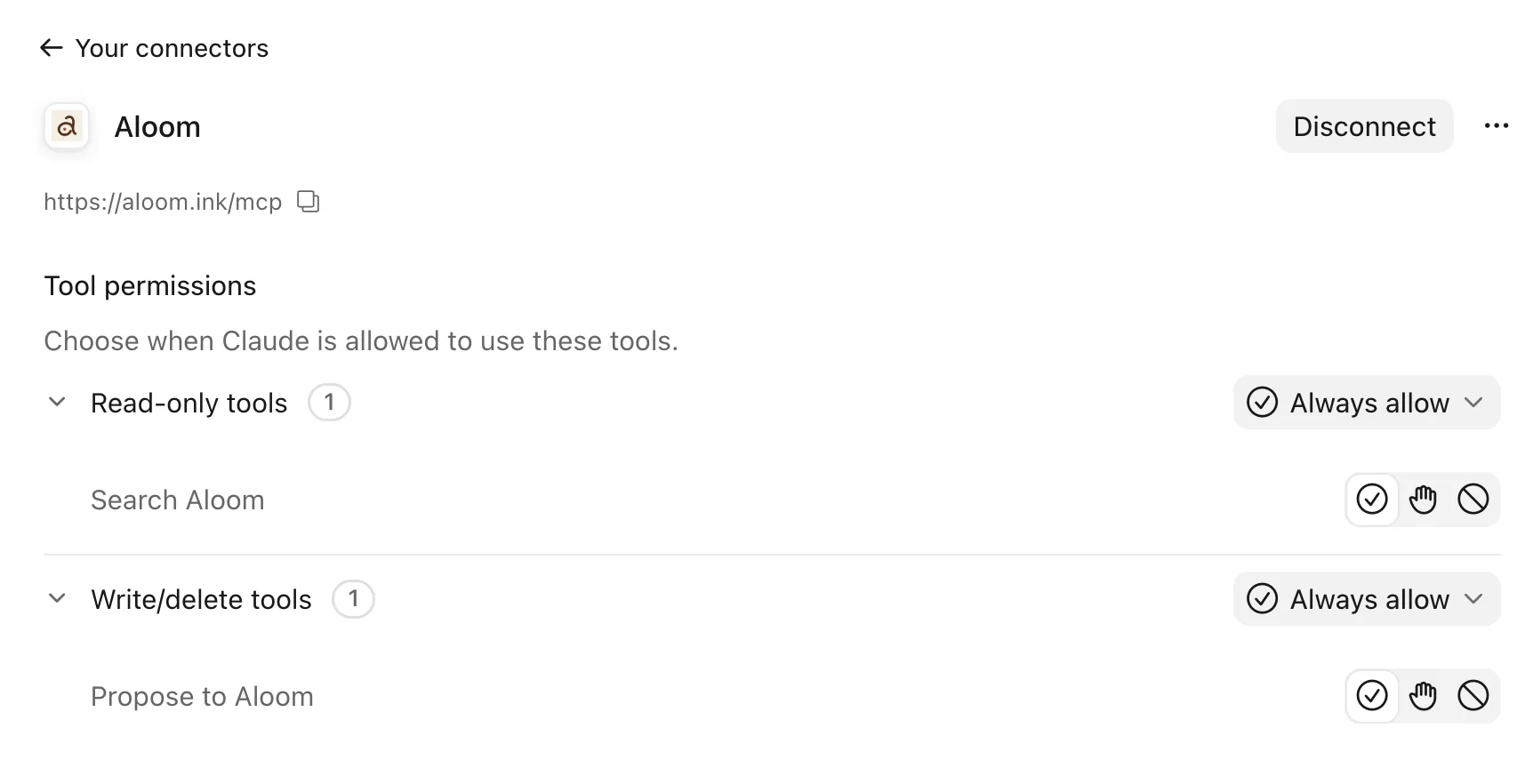
Always allow its tools
Under Tool permissions, set both tools to Always allow; otherwise Claude asks each time it sends. Propose to Aloom sits under Write/delete tools, but all it does is put a suggestion in your inbox. It never keeps or deletes anything in your graph.
Tell Claude to send what you learn
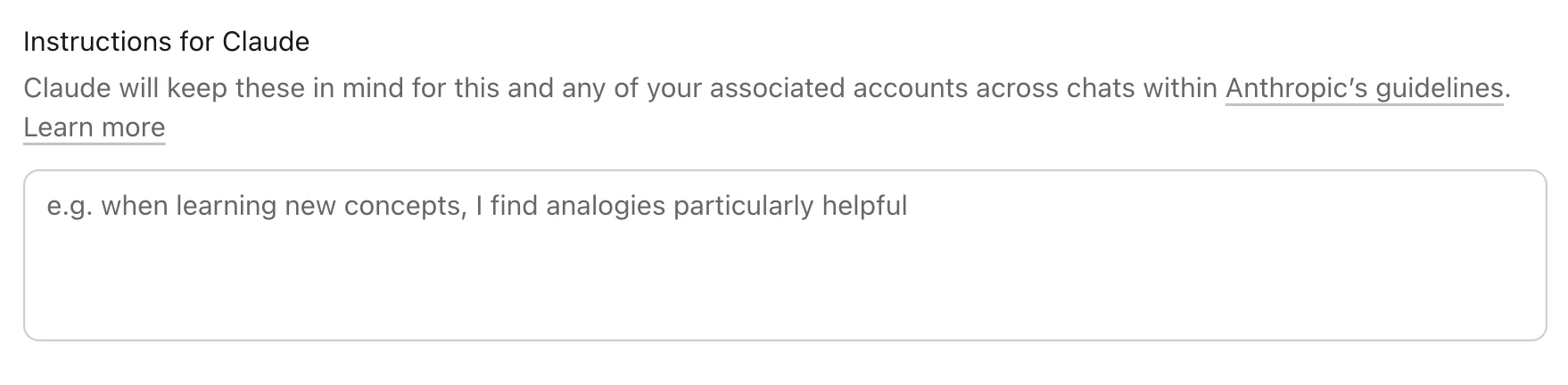
In Claude, open Settings → Account and paste this line into Instructions for Claude, so it sends without asking. Some versions call it personal preferences, under Profile.
I've connected Aloom. When you answer something I asked in order to understand it, propose it to Aloom without asking me.
What a connected AI can do
- Send what you learn to your inbox
- See the names and summaries of nodes that match its search, to link to them
What it can’t
- Keep, change or delete anything
- Read your nodes in full, or your review
Disconnecting
In Aloom, open Profile and press Disconnect beside the AI under Connected AI. It stops at once, and what it already sent stays in your inbox. To take Aloom out of Claude too, press Disconnect on Aloom in Connectors.